
To create a new household:
- In the top navigation, click Client.
- Click Client Actions.
- Click Client Groups.

- Click Add New Groups.

- Under Add Client Group, enter the Name of the new Household.
Note: The Primary Contact field is not required. If desired, once you have added Clients to the Household, you can click the Primary Contact drop-down menu to select a Primary Contact for the new Household. - Click the Client Group Type drop-down menu, and then select Household.

- Under Add Clients to Group, enter the name of a desired client in the Search field.
Note: You can also use the scroll bar to view clients if desired. - When you have found the desired client, click the plus sign icon to the right of their name to add the client to the Household.
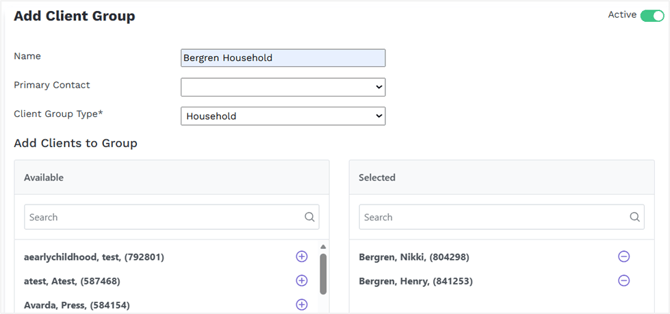
- Repeat steps 6 and 7 until you have added all desired clients to the new Household.
- Click Save Client Group.
You can now see the newly-created Household on the individual members of the Household.
