
This data export displays program enrollment data. You can choose to download all program enrollment data, or you can use the filters to refine your criteria.
- In the top navigation, click the user profile icon.
- Click Exports.

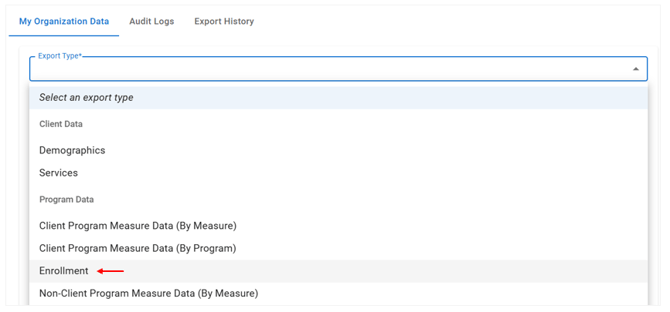
- Click the Export Type* drop-down menu, and then select Enrollment.
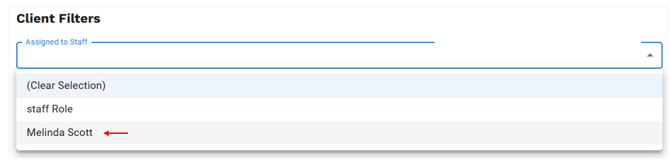
Note: To download all program enrollments without using any filters, skip the remaining steps and simply click Add to Queue. An .XLSX document with all program enrollments will be downloaded to your computer when it is ready. - Under Client Filters, click the Assigned to Staff drop-down menu, and then select the desired Staff member.
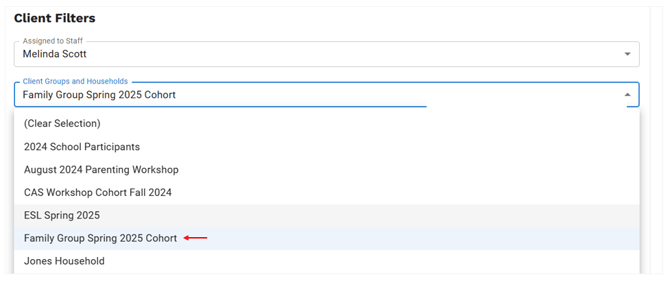
- Click the Client Groups and Households drop-down menu, and then select the desired client group or household.
- Click the Creation Date drop-down menu, and then select the desired date range.

- Click the Program Enrollment drop-down menu, and then select one of the following:
- Has Program Enrollment – Shows data for clients who are enrolled in a program.
- Does Not Have Program Enrollment – Shows data for clients who are not enrolled in a program.
- Note: When Has Program Enrollment or Does not have Program Enrollment is selected, additional filters become available:
- Program – Filter by a specific program.
- Enrollment Start Date and Enrollment End Date – Filter the program enrollment based on the Enrollment Start Date and/or Enrollment End Date.
- Program – Filter by a specific program.
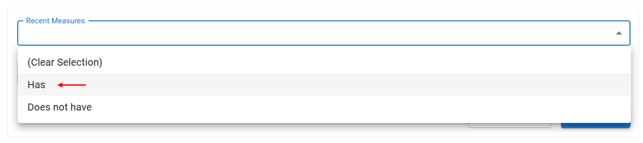
- To filter by whether or not a client has recently had measures added to their client record, click the Recent Measures drop-down menu, select either Has or Does not have, and then select the desired Measure.
- Click the calendar icon in the Measure Date Range field. You can then select one of the pre-filled date ranges (e.g. Any Data, Last 7 Days, etc.) or you can select Custom and enter a custom date range.
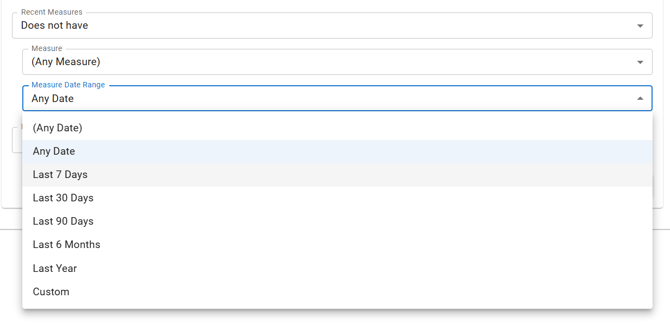
- Click the calendar icon in the Measure Date Range field. You can then select one of the pre-filled date ranges (e.g. Any Data, Last 7 Days, etc.) or you can select Custom and enter a custom date range.
- To filter by whether or not a client has recently had services added to their client record, click the Recent Services drop-down menu, select Has or Does not have, and then select the desired service.
- Click the calendar icon in the Service Date Range field. You can then select one of the pre-filled date ranges (e.g. Any Data, Last 7 Days, etc.) or you can select a custom date range.
- Once you have selected the desired filters, click Add to Queue, and then the file downloads automatically when it is ready.